To establish a comprehensive platform for handling amateur radio business in Hunan Province (http://yywxd.hnra.org.cn) This guide has been created to provide amateur radio enthusiasts with more convenient assistance during the usage process, including explanations and support.
1. Account Login / Registration
1. Log in to the main interface

Figure 1-1
2. Operating Instructions
If this is your first time applying for amateur radio, you can first click "Register User" in the bottom right corner and fill in the required information (as shown in Figure 1-2), then click "Register Now".

Figure 1-2
Then, return to the account login main interface and enter the phone number (or ID card number) and password that you used during registration (as shown in Figure 1-3), and click "Login".
Figure 1-3
II. Exam Registration
The Management Committee will decide whether to open the registration system based on actual circumstances. Once the registration system is opened, users can fill in registration information according to their specific needs. When the status displayed after completing the registration is "Pending Review," it indicates that the information has been successfully submitted.
If the administrator approves, the registration information will be in "approved" status. The system will then send the exam time and location to the user's registered mobile phone via SMS approximately one week before the exam. If approval is not granted, the registration information will be in "unapproved" status, and the user will need to re-enter the information.
First-time exam takers should choose Class A operational skills. After passing Class A, you can register for Class B after six months (natural year). To register for Class C, you must pass Class B and have held a shortwave radio license for two years (natural year).
1、Main interface for exam registration

Figure 2-1
2、Registration method for Class A exams
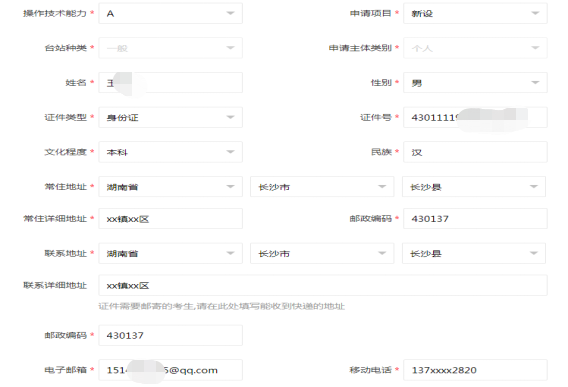
First, please fill in your personal information as prompted on the interface. Fields marked with a red asterisk (*) are required. As shown in Figure 2-2:

Figure 2-2
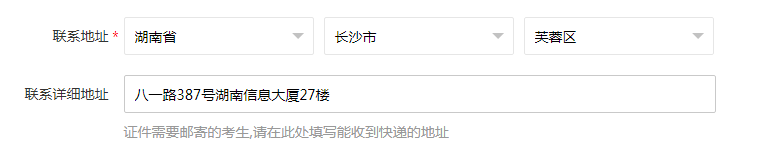
Please note: After successfully completing the exam, you will receive your amateur radio operator's license and a station license (if you provided equipment information during registration). To ensure that documents are delivered accurately, please provide an address where you can receive express delivery at the "Contact Address" field. If documents are lost due to incorrect address information provided by the applicant, the responsibility lies with the applicant. Express delivery defaults to EMS. As shown in Figure 2-3:

Figure 2-3
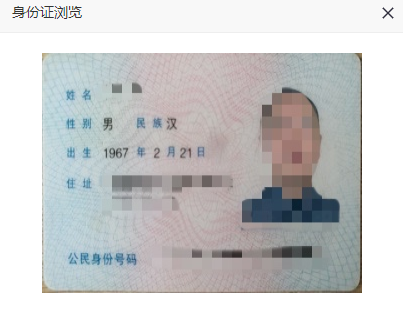
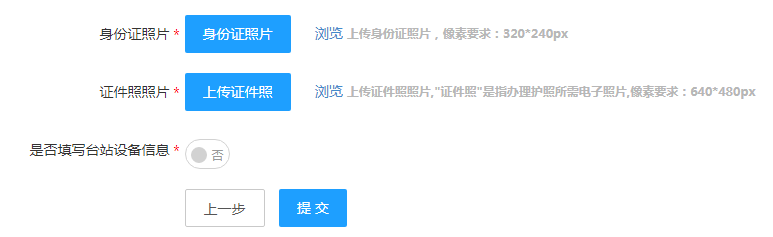
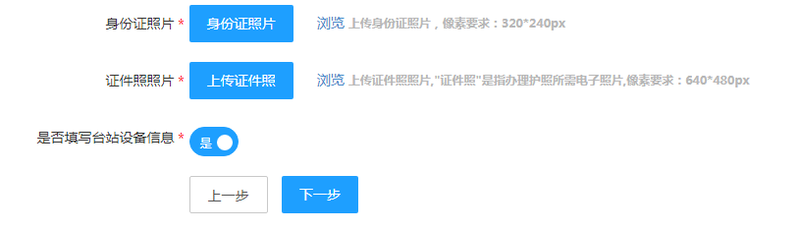
Then click "Confirm and Next," to enter the setup situation interface. Here, you only need to upload a photo of your ID's front side (resolution requirement: 640(480px) and electronic copies of identification documents (pixel requirements: 480(640px), "Passport photo" refers to the electronic photograph required for obtaining a passport. The front photo of the ID card must be neat, clear, and rectangular in shape. The electronic file of the passport photo can have any background color, as shown in Figure 2-4:


Figure 2-4

Figure 2-5
If you already have spare equipment and need to obtain a radio license and an identifier (call sign), please select "Yes" (as shown in Figure 2-6) and proceed to the next step:

Figure 2-6
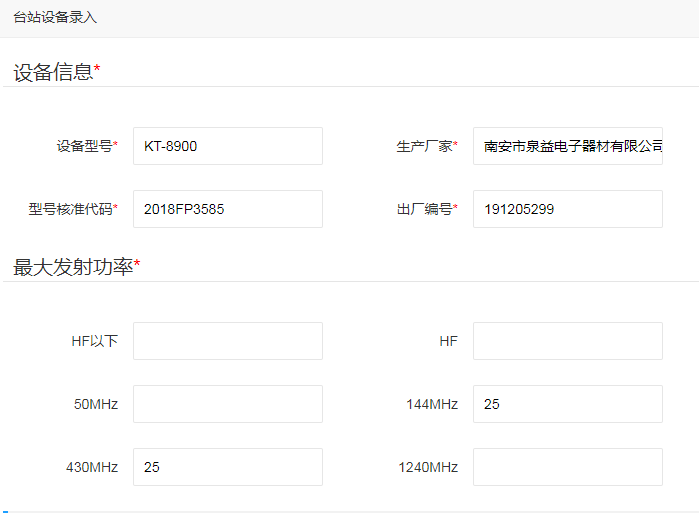
After entering the station equipment information interface, click "Add" in the upper-left corner and enter the station equipment information as prompted.
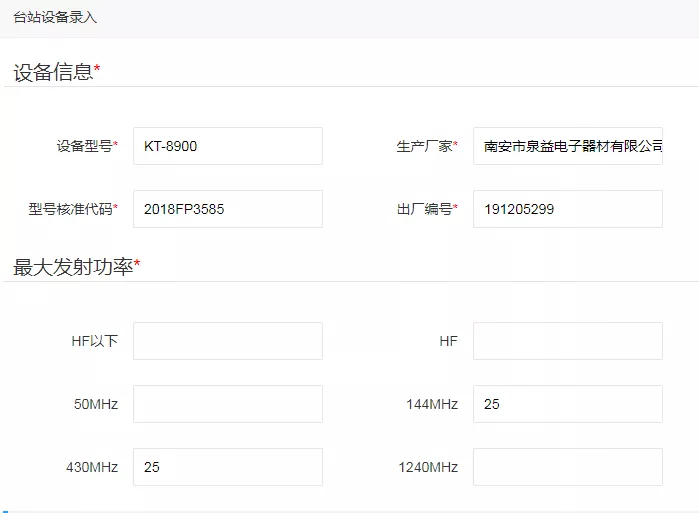
Please note: The "[Model Verification Code]" corresponds to the "[CMIIT ID]" code on the device; the "[Factory Number]" corresponds to the serial number or Serial number on the device. Please fill in the corresponding transmission power for the frequency band of the device (enter only the number, the unit for transmission power is W). If the device does not have a specific frequency band, leave it blank as shown in Figure 2-7:

Figure 2-7
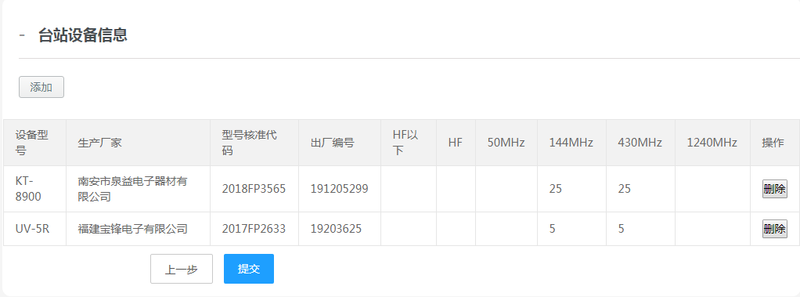
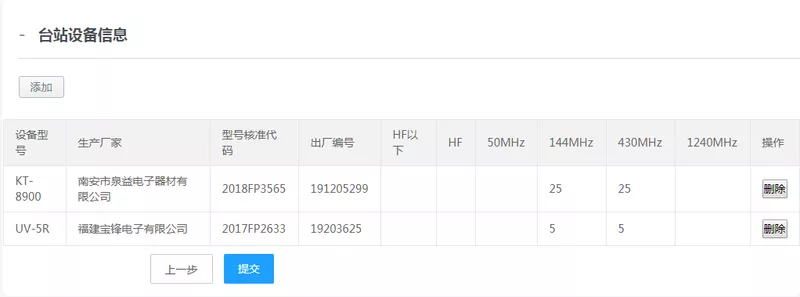
If multiple devices are present, you can click "Add" again to complete the information and then confirm. The final filled-in form is shown in Figure 2-8:

Figure 2-8
Finally, after verifying that the information is correct, click "Submit".
3. Method for registering for Class B exams
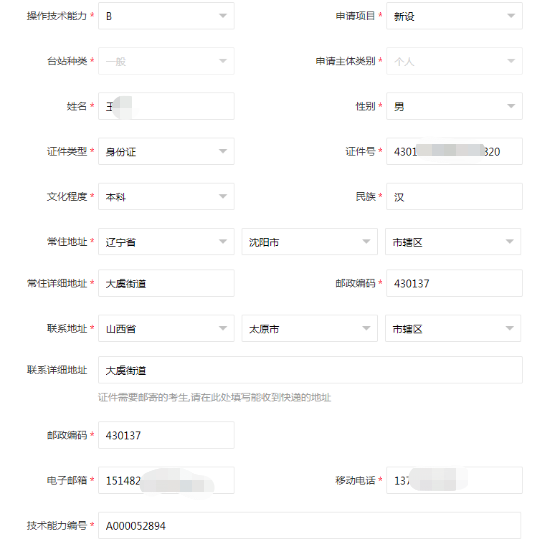
First, fill in your personal information as prompted by the interface. Fields marked with a red asterisk (*) are required. As shown in Figure 2-9:

Figure 2-9
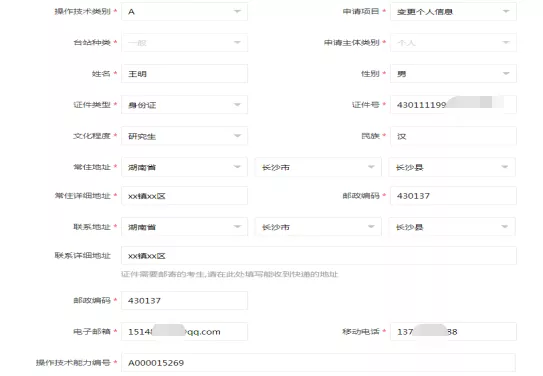
Unlike A-level exam registration, B and C-level candidates also need to fill in the "Technical Capability Number." Candidates registering for B-level must provide the operation technical capability number from their A-level certificate (i.e., the certificate number on their operating license), as shown in Figure 2-10:

Figure 2-10
Please note: After successfully completing the exam, you will receive a certificate of amateur radio operator and a license for the radio station (if you submitted equipment information during registration, you will also receive a license). To ensure that the documents are delivered accurately, please fill in the address where you can receive express delivery at the "Contact Address" section. If the documents are lost due to an incorrect address provided by the applicant, the responsibility lies with the applicant. Express delivery defaults to EMS (as shown in Figure 2-11).

Figure 2-11
Then click "Confirm and Next," to enter the setup situation interface. Fill in the amateur radio call sign as prompted, as shown in Figure 2-12:

Figure 2-12
Then upload a photo of your ID's front side (resolution requirement: 640(480px) and electronic copies of identification documents (pixel requirements: 480(640px), "Passport photo" refers to the electronic photograph required for obtaining a passport. The front photo of the ID card must be neat, clear, and rectangular in shape. The electronic file of the passport photo can have any background color, as shown in Figure 2-13:


Figure 2-13
[Whether to fill in information about on-site equipment]: If you do not have a ham radio device when registering, select "No" and proceed with registration. As shown in Figure 2-14:

Figure 2-14
If you already have spare equipment and need to obtain a radio license and an identifier (call sign), please select "Yes" (as shown in Figure 2-15) and proceed to the next step:

Figure 2-15
After entering the device information interface for the base station, click "Add" in the upper left corner and enter the base station device information as shown below:
Note: [Model verification code] corresponds to the [CMIIT ID] code on the device; [Factory number] corresponds to the serial number or Serial number on the device. [Maximum transmission power] should be filled in with the transmission power of the corresponding frequency band for the device (only enter the number, the unit for transmission power is W). If the device does not have a specific frequency band, it should be left blank as shown in Figure 2-16:

Figure 2-16
If there are multiple devices, you can click "Add" again to complete the information and then confirm. The final filled-in form looks like Figure 2-17:

Figure 2-17
Please note: Candidates can only enter new equipment information on this page. If you need to renew your license, please return to the homepage and fill in the information under "License Application."
Finally, after verifying that all the information is correct, click "Submit" to complete the form.
III. Obtaining a License
1、Main interface for license application

Figure 3-1
2. Procedure for obtaining a license
First, please fill in your personal information as prompted by the interface. Fields marked with a red asterisk (*) are required. As shown in Figure 3-2:

Figure 3-2
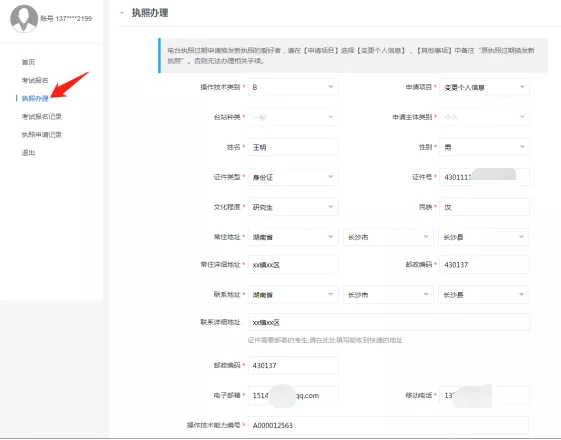
Please note: For enthusiasts applying for a new radio license after their existing one expires, please select "Change Personal Information" under "[Application Project]". For enthusiasts who purchase new equipment and need to obtain a radio license for the new equipment, please select "New Equipment" under "[Application Project]".
Candidates in categories A, B, and C who are applying for a license must complete the "Technical Capability Number," which is the "Operating License Number" on their operating license. As shown in Figure 3-3:

Figure 3-3: Example of a Class B enthusiast's application
Then click "Next" to enter the setup situation interface. Fill in the amateur radio call sign as shown in Figure 3-4, following the instructions:

Figure 3-4
Subsequently, in the "Other Matters" section, note any requirements, such as "Replace expired license with a new one," "Add new equipment," or "Remove equipment." Otherwise, it will be impossible to complete the relevant procedures, as shown in Figure 3-5.

Figure 3-5
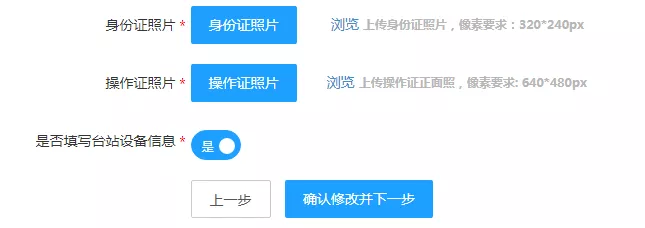
Then upload a photo of your ID's front side (resolution requirement: 640(480px) and a clear photo of your operator's license (resolution requirement: 640(480px), two photos are required to be neat, clear, and rectangular in shape, as shown in Figure 3-6.


Figure 3-6
[Whether to fill in station equipment information] Option: Please click "Yes" (as shown in Figure 3-7), then click "[Confirm modification and next step]".

Figure 3-7
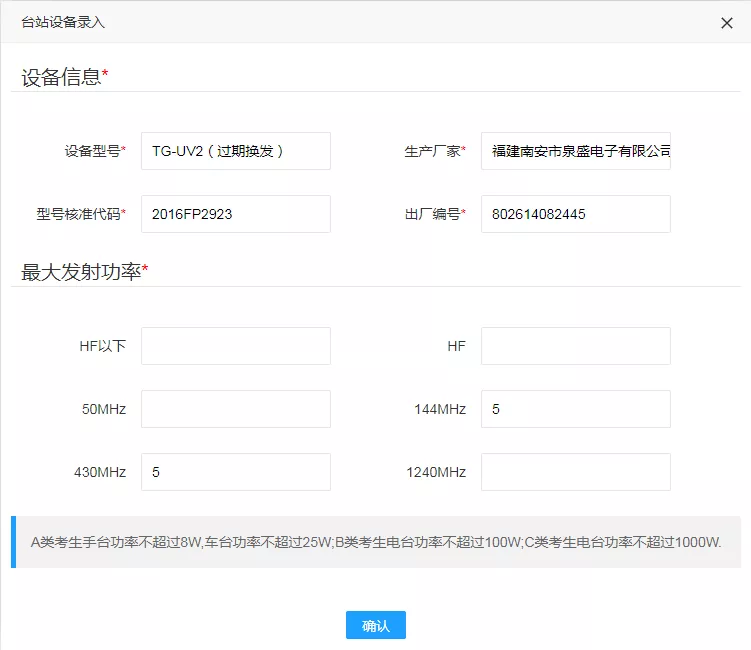
After entering the equipment information interface for the base station, click "Add" in the upper left corner and enter all base station equipment information (including information about existing and new devices) as prompted. If there are multiple devices, you can click "Add" again to complete the information, and then click "Confirm." As shown in Figure 3-8:

Figure 3-8
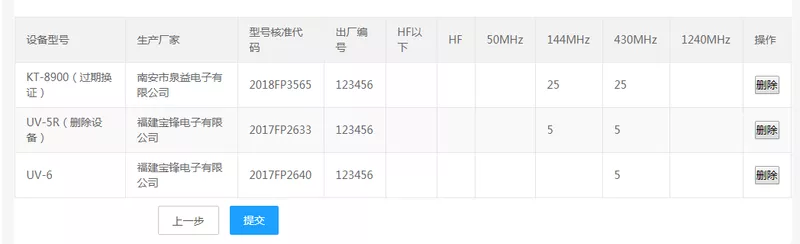
Candidates who need to apply for a new license and renew an existing one (e.g., those who have purchased new equipment while their old license is expiring) can submit their applications in this section simultaneously. However, when renewing the old license, please note the type of equipment after "Equipment Model." Radio enthusiasts whose licenses are expiring or whose radio information needs to be changed must also record the corresponding equipment and indicate whether it is being renewed or deleted. As shown in Figure 3-9:

Figure 3-9
Finally, after verifying that the information is correct, click "Submit" to complete the information declaration.
For business inquiries regarding amateur radio, please contact: 0731-84587073